
Branding and white-labelling
White-labelling is the bit of Client Reporter I most wanted to get right. Client-facing reports can be branded completely as your agency, with no Client Reporter references anywhere your clients can see.
You control the logo, colours and name that show up on reports and across the client-facing experience, so your clients see the report as yours. This section covers how to set that up and how far the branding reaches.
The branding cascade
Branding is resolved down a chain, from the most general to the most specific. The most specific non-empty value wins, field by field:
Global agency branding  →  Client override  →  Site override
        (base)                                    (most specific)
Each level is a branding profile that overrides only the fields it sets. A blank field falls through to the level above, and anything still unset drops back to a sensible built-in default. So you set your agency identity once, globally, and only override the handful of fields that differ for a particular client or site.
- Global is the base - your agency's own identity, used everywhere unless something below overrides it. It's created automatically the first time you open it.
- Client overrides let you re-brand reports for a specific client (handy for sub-brands, or reseller/partner arrangements).
- Site overrides are the most specific and win over both.
Logo and favicon cascade the same way: the effective logo is the one set at the most specific level that has one.
What you can brand
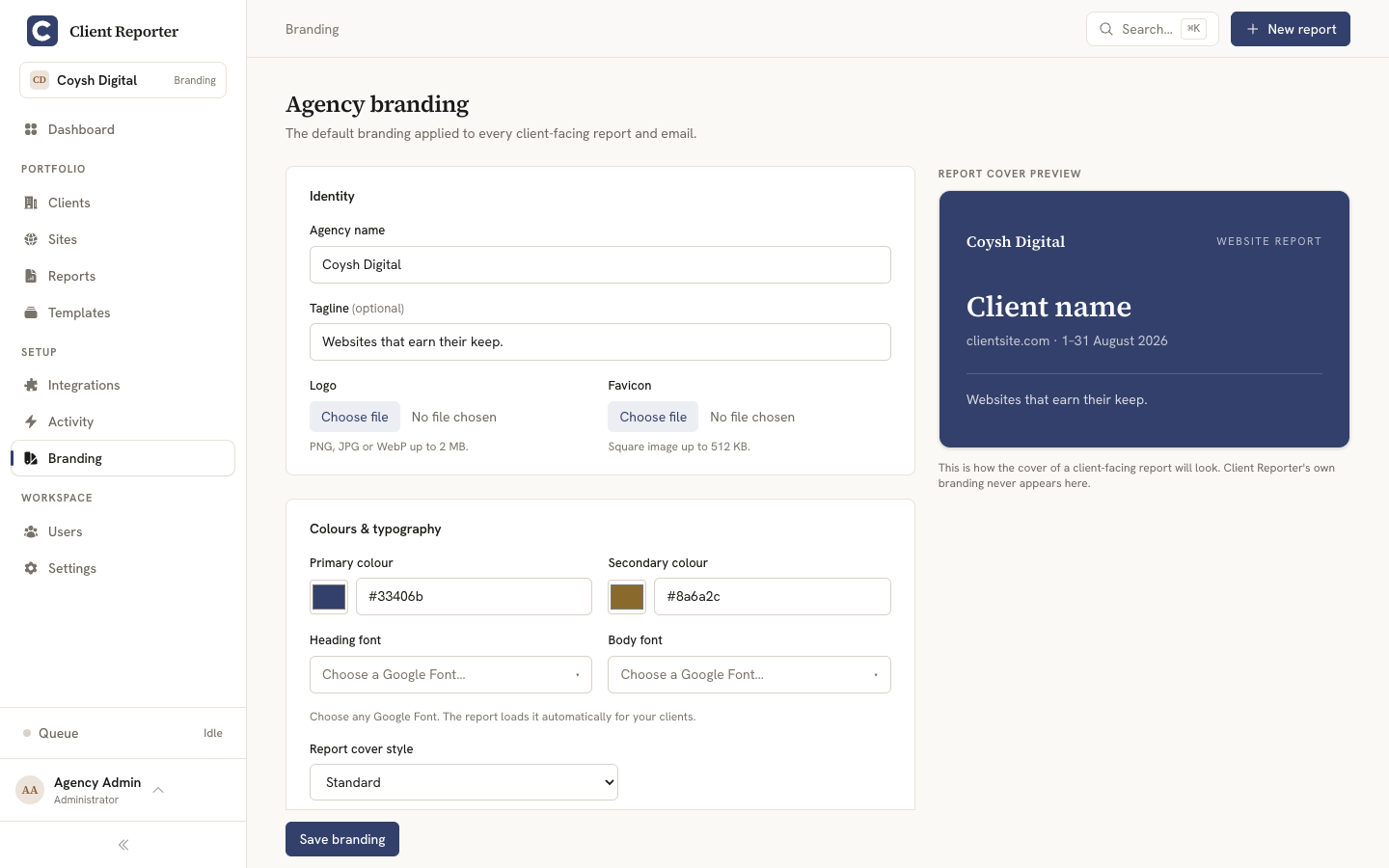
Every branding profile can set:
- Identity - agency name and tagline.
- Logo - shown on the report cover, in emails and in the portal header.
- Favicon - the browser-tab icon for client-facing pages.
- Colours - a primary colour and a secondary colour, applied as CSS custom properties (
--brand-primary,--brand-secondary) throughout the report, cover, headings, tables and accents. Both are validated as hex colours. - Typography - a heading font and a body font, each chosen from a curated Google Fonts picker. The report stores a full font stack (e.g.
'Source Serif 4', Georgia, serif), so the document loads the chosen web font from Google Fonts and still falls back sensibly where the web font cannot load - for example in the dompdf PDF driver, which uses the fallback in the stack. - Report cover style -
minimal,standardorbold. - Contact details - website, email, phone and address (used in closing blocks, emails and footers).
- Footer text - a report footer and a separate email footer.
- Custom CSS - advanced per-brand CSS injected directly into the client-facing report document, for fine adjustments beyond the built-in controls.
If you set nothing anywhere, the defaults are a deep indigo primary, a muted gold secondary, a Source Serif 4 heading font, a Hanken Grotesk body font and the standard cover style. And when no agency name is set at any level, the report falls back to the app's own product name.
Full white-label
The client-facing report document is fully white-labelled: it uses only the agency's own favicon and identity, and shows no Client Reporter references and no fallback icon. If you haven't uploaded a favicon, the report just leaves it out rather than giving the product away.
The client portal is agency-branded too - your logo and favicon are used wherever you've set them. The portal is the one surface that falls back to Client Reporter's own icon, and only when you haven't uploaded a favicon of your own. It never shows clients the product name in place of yours.
Where to set it
Branding lives in the Branding area and on each client/site:
- Global agency branding -
/branding(needs the manage branding permission, i.e. an Administrator). - Per-client branding - from a client's page,
/clients/{client}/branding(needs manage clients). - Per-site branding - from a site's page,
/sites/{site}/branding(needs manage sites).
All three use the same editor, scoped to whichever level you opened it at.
Live cover preview
The branding editor shows a live report-cover preview that updates as you type - logo, colours, chosen fonts and the selected cover style all show up straight away, so you can see how a client's report cover will look before you save.
Report wording and translation
Branding covers the look of a report; the report's wording is editable too. Every fixed word or phrase your clients see on a report - section headings, metric labels, table headers, chart titles, the uptime legend, the auto-written summary sentences, even the "protected report" gateway page - comes from a language file, so you can reword any of it to suit your voice, or translate the whole report into another language, without touching any core file.
How it works
There are two layers:
- The shipped defaults live in
config/report-language.php. This file is part of Client Reporter and I keep it up to date - don't edit it to customise wording, because an update will overwrite your changes. Open it to see every phrase you can change and the key it lives under. - Your overrides live in
config/report-language.local.php. This file is git-ignored, so it survives updates - it's yours to maintain. It's deep-merged over the defaults: you only put in the keys you actually want to change, and everything else falls back to the shipped wording.
That fallback is the important part: if a future update adds new report text, your override file doesn't go stale. The new text simply shows in the shipped language until you choose to translate it. (The flip side - and this is your responsibility - is that when you do want new phrases translated, you'll need to add them to your override file yourself.)
Setting it up
There's an example to copy:
cp config/report-language.local.php.example config/report-language.local.phpThen open config/report-language.local.php and add just the keys you want to change, matching the structure in config/report-language.php. For example:
return [
    'common' => [
        'source' => 'Data source',
        'this_period' => 'This month',
    ],
    'traffic' => [
        'heading' => 'Website visitors',
        'tile' => [
            'visitors' => 'Unique visitors',
        ],
    ],
    'uptime' => [
        'legend' => ['below' => 'Below target'],
    ],
];
Some phrases contain a :name placeholder where a live value is dropped in - for example ":count visitors this period". Keep the placeholder in your wording (you can move it around) or the value won't appear.
Edits are read on every render, so they take effect immediately - there's no cache to clear. A couple of things worth knowing:
- Number and date formatting (things like
210 ms,5m 20sor1,240) isn't part of the language file - that's numeric formatting, not wording. - The auto-written summary sentences and a handful of metric labels are captured into a report when it's generated (the same way branding is frozen - see below). So a wording change shows on reports you generate from then on; regenerate an older report if you want it to pick up the new wording. On-screen section headings and table text update straight away.
How branding is frozen into a render
Branding is resolved for a Site by cascading global → client → site, exactly as above. When you generate a report, the resolver works out the effective branding and the generator freezes it into the report render alongside the block data (see Reports).
From then on, every client-facing copy of that report - the public share link, the emailed copy and the PDF - comes from that branding snapshot, not from the live profiles. So a report keeps the exact look it had when you generated it, even if you later change your global branding or a client override. Want to apply new branding to an existing report? Regenerate it.
Related
- Reports - how reports are built, generated and delivered.
- Configuration - the PDF driver (dompdf / Browsershot), which affects how branded fonts render in exported PDFs.