
Configuration
Here's how to configure Client Reporter once it's installed.
Most of it is just standard Laravel, done through your .env file. The bits that matter most here are your database, the cache/session/queue drivers, and the PDF renderer. I've picked defaults that work on shared hosting without any extra services: SQLite for the database, the database drivers for cache/session/queue, and dompdf for PDFs. So on a fresh install you can leave all of it alone and it'll just work.
There are a few Client Reporter-specific options in config/client-reporter.php, and a handful of operational settings you can change at runtime from the admin Settings page (those override the config defaults). Everything else is plain Laravel.
Database
The install wizard writes your database settings for you, but you can also set them directly in .env. Client Reporter works with SQLite, MySQL/MariaDB and PostgreSQL.
SQLite (default)
The simplest option, and the default - there's no server to set up. The database is just a single file at database/database.sqlite:
DB_CONNECTION=sqliteCreate the file if it isn't there yet (touch database/database.sqlite), then run migrations. SQLite is a great fit for shared hosting and small-to-medium agencies.
MySQL / MariaDB
DB_CONNECTION=mysql        # or: mariadb
DB_HOST=127.0.0.1
DB_PORT=3306
DB_DATABASE=client_reporter
DB_USERNAME=your_user
DB_PASSWORD=your_password
PostgreSQL
DB_CONNECTION=pgsql
DB_HOST=127.0.0.1
DB_PORT=5432
DB_DATABASE=client_reporter
DB_USERNAME=your_user
DB_PASSWORD=your_password
After you change the connection, run php artisan migrate. If you're switching databases on an install that already has data, migrate the schema into the new database first - heads up, Client Reporter won't move your existing data between database engines for you.
Cache, session and queue drivers
Out of the box these all use the database driver, so a fresh install doesn't need Redis, Memcached or anything else:
CACHE_STORE=database
SESSION_DRIVER=database
QUEUE_CONNECTION=database
This is what makes the single-cron shared-hosting model work. If you're on a VPS you can point any of these at Redis for lower latency:
CACHE_STORE=redis
SESSION_DRIVER=redis
QUEUE_CONNECTION=redis
REDIS_HOST=127.0.0.1
REDIS_PORT=6379
Redis is completely optional - the database drivers are fully supported in production, so don't feel you're missing out by not running it.
Queue processing
Data collection and the other background work run through Laravel's queue. There are two ways to process it:
- Scheduler-driven (default, shared-hosting friendly). The scheduler runs
queue:work --stop-when-empty --max-time=55every minute, draining the database queue on each tick. All it needs is the singleschedule:runcron entry - no long-running process. This is the one I'd recommend on shared hosting. - Persistent worker (VPS). Run a long-lived
php artisan queue:work(managed by systemd/supervisor, or Laravel Horizon with Redis) for lower latency. If you go this route, remove thequeue:workline fromroutes/console.phpso jobs aren't processed twice.
See Shared hosting for the cron setup and when to move to a VPS.
What runs on the queue
Everything that talks to an external service runs as a queued job rather than inside a page request: data collection (one job per connection and period, retried with backoff on transient errors, unique so a backed-up queue never stacks duplicates), report generation (the builder queues it and polls until it finishes), billing sync and favicon fetches. The scheduler's queue:work line drains these; a VPS running a persistent worker processes them straight away. The Activity page shows what is queued, running and failed, and a run left behind by a killed worker is closed on the next client-reporter:collect tick.
Collection-run history older than 90 days and all but the newest five frozen renders per report are pruned automatically; the metrics retention setting is separate and off by default.
PDF rendering
You can export reports to PDF with one of two drivers:
| Driver | Requirements | Best for |
|---|---|---|
| dompdf (default) | None - pure PHP | Shared hosting; zero dependencies |
| browsershot | Node.js + headless Chromium on the server | Pixel-perfect Tailwind fidelity on a VPS |
The default is set in .env and config/client-reporter.php:
CLIENT_REPORTER_PDF_DRIVER=dompdf
# Allow dompdf to load remote resources such as a logo served over http.
LARAVEL_PDF_DOMPDF_REMOTE_ENABLED=true
You can also switch the driver at runtime from the admin Settings page (pdf_driver, options dompdf or browsershot). The saved setting wins over the config default, so on a VPS you can flip to Browsershot without editing any files. The report views are written to render correctly under dompdf - if you're writing your own report blocks, have a look at the Development notes.
Mail
Reports and password resets go out by email, so you'll want to configure a mailer in .env. The default is log (messages get written to the log instead of actually sent), which is fine while you're kicking the tyres but no good for delivering real reports:
MAIL_MAILER=smtp
MAIL_HOST=smtp.your-provider.com
MAIL_PORT=587
MAIL_USERNAME=your_user
MAIL_PASSWORD=your_password
MAIL_SCHEME=tls
MAIL_FROM_ADDRESS="reports@your-agency.com"
MAIL_FROM_NAME="${APP_NAME}"
Use whatever transport your host supports (SMTP, a transactional-mail API, whatever). The from-name defaults to the application name; client-facing report emails are branded separately through the branding system.
Client Reporter options (config/client-reporter.php)
A few product-specific settings live in config/client-reporter.php. Most have sensible defaults, and the important ones are also on the admin Settings page.
version/repository- product identity, used by the admin UI and the GitHub update checker. Keepversionin sync with tagged releases.integrations- the first-party integration classes bundled with the app. Third-party integrations are discovered automatically from installed Composer packages, so you rarely edit this.report_blocks- the core report blocks always available in the builder.collection.default_interval- default minutes between collections for a connection (360 = 6 hours).collection.retention_days- how long collected metrics/snapshots are kept (null= keep everything; recommended so historical reports stay accurate).connectors.timestamp_tolerance- replay-protection window (seconds) for signed requests from the WordPress/Craft companion plugins.pdf.driver- default PDF renderer (see above).reports.default_share_expiry_days- default expiry for public share links (null= no expiry).updates.enabled- whether to check GitHub for newer releases and notify admins. Client Reporter never updates itself; see Updating.
Relevant environment variables:
CLIENT_REPORTER_PDF_DRIVER=dompdf
CLIENT_REPORTER_CONNECTOR_TIMESTAMP_TOLERANCE=300
CLIENT_REPORTER_UPDATE_CHECK=true
Retention and disk growth
Collected data accumulates. What is kept, and what trims it:
- Metrics and snapshots (the per-period figures and per-day series each collector writes) are kept forever unless you set Retention on the Settings page, in which case anything older than that many days is pruned by the daily
client-reporter:collectrun. Generated reports keep their own frozen copy of the data, so pruning never changes a report a client has already received. - Collection run history (the Activity page) is pruned automatically after 90 days.
- Report renders - each generation freezes a render; the newest five per report are kept and older ones are removed automatically.
- Cached favicons and uploaded logos live in
storage/app/public/and are small. - Queue and failed-job tables are cleared as jobs complete; failed jobs stay until you retry or dismiss them from the Activity page.
An SQLite install for a few dozen sites typically stays well under 100 MB a year with retention left blank; set retention to 365–730 days if disk space matters more than long-range history.
Report wording
The fixed words and phrases on your client-facing reports live in config/report-language.php (the shipped defaults) and can be reworded or translated in a git-ignored config/report-language.local.php that survives updates. This is covered in full under Branding → Report wording and translation.
Admin Settings page
Log in as an Administrator and open Settings (/settings, requires the manage-settings permission) to change these at runtime without touching any config files. Whatever you save here overrides the config defaults:
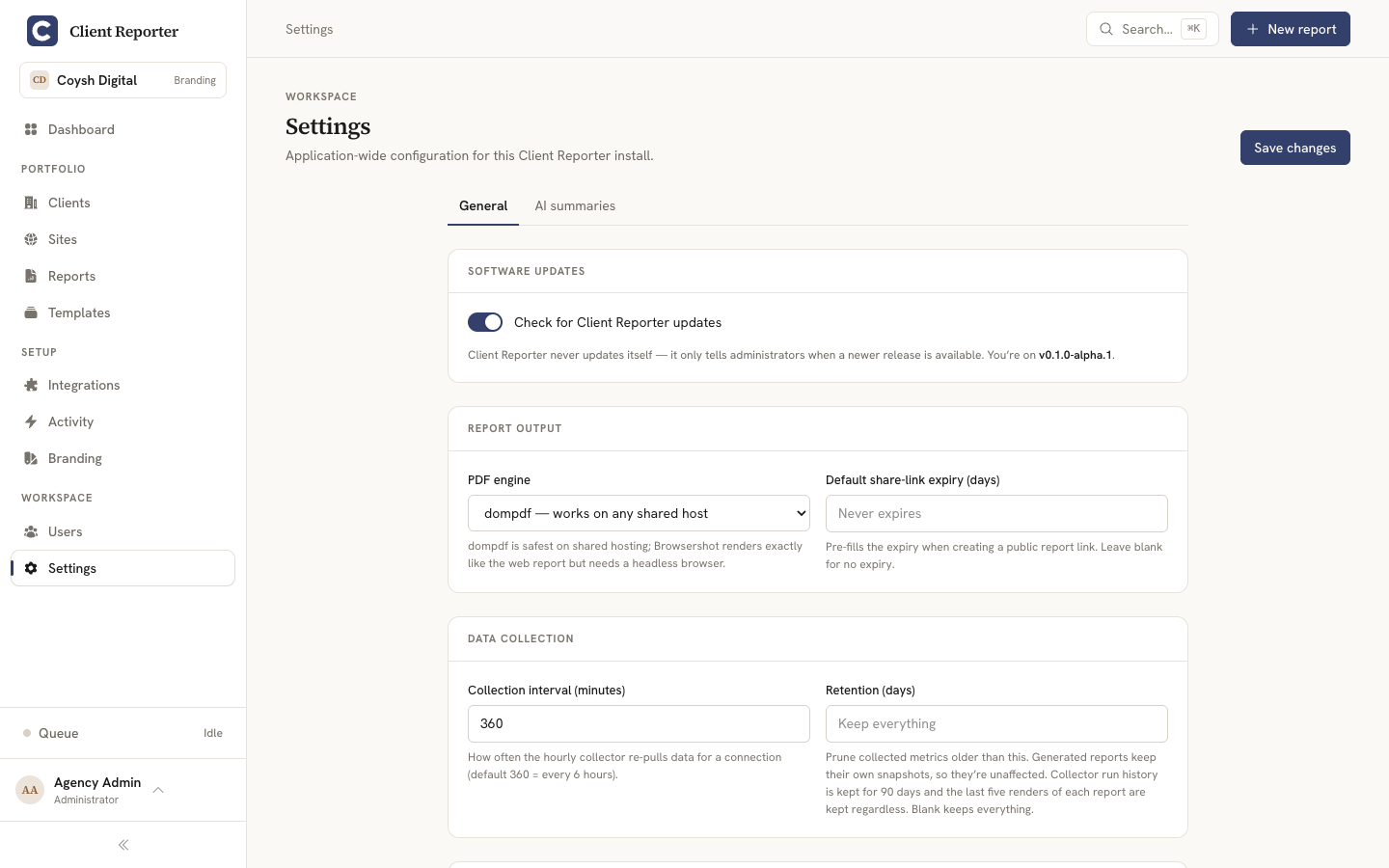
| Setting | Meaning | Range / options |
|---|---|---|
PDF driver (pdf_driver) | Which renderer produces PDF exports | dompdf or browsershot |
Update checks (updates_enabled) | Whether to check GitHub for new releases and notify admins | on / off |
Collection interval (collection_interval) | Minutes before a connection is considered due for collection again | 15–10080 (minutes) |
Retention (collection_retention_days) | Days of collected metrics/snapshots to keep before pruning | 1–3650, or blank for keep-forever |
Share-link expiry (default_share_expiry_days) | Default expiry applied to new public report share links | 1–3650 days, or blank for no default expiry |
The Settings page also shows your current version, the installation date, and the latest release info from the update checker.
Storing integration credentials
Integration credentials (API keys, OAuth tokens, connector secrets) are stored encrypted in the database using your APP_KEY. Keep APP_KEY secret and back it up - if you lose it, your stored credentials can't be recovered. See Security for the details.