
Integrations
Integrations are how Client Reporter connects to the services behind your clients' websites and pulls in the data your reports are built from.
Each integration attaches to a Site, says how it authenticates, checks its credentials, and comes with collectors that pull data in on a schedule. Every integration - the ones bundled here and any you install or build yourself - implements the same Integration contract, so they all connect, store credentials and collect data in exactly the same way.
How integrations fit the data model
Everything in Client Reporter hangs off one simple chain:
Client → Sites → Integrations → Data → Reports
- A Client is the business you report to.
- Each Client has one or more Sites (usually a website, plus any related property).
- Each Site has one or more Integrations - an analytics property here, an uptime monitor there, an ecommerce store, and so on.
- Integrations run collectors on a schedule that gather metrics and snapshots into Client Reporter's local Data store.
- Reports are built from that stored data using blocks, then branded and shared.
Because the data is stored locally, your historical reports stay accurate even if you later change or remove a connection. Collectors are dispatched by the client-reporter:collect command, which the Laravel scheduler runs every minute and drains through the queue - so a single cron entry is all you need on shared hosting (see Shared hosting).
Adding an integration to a Site
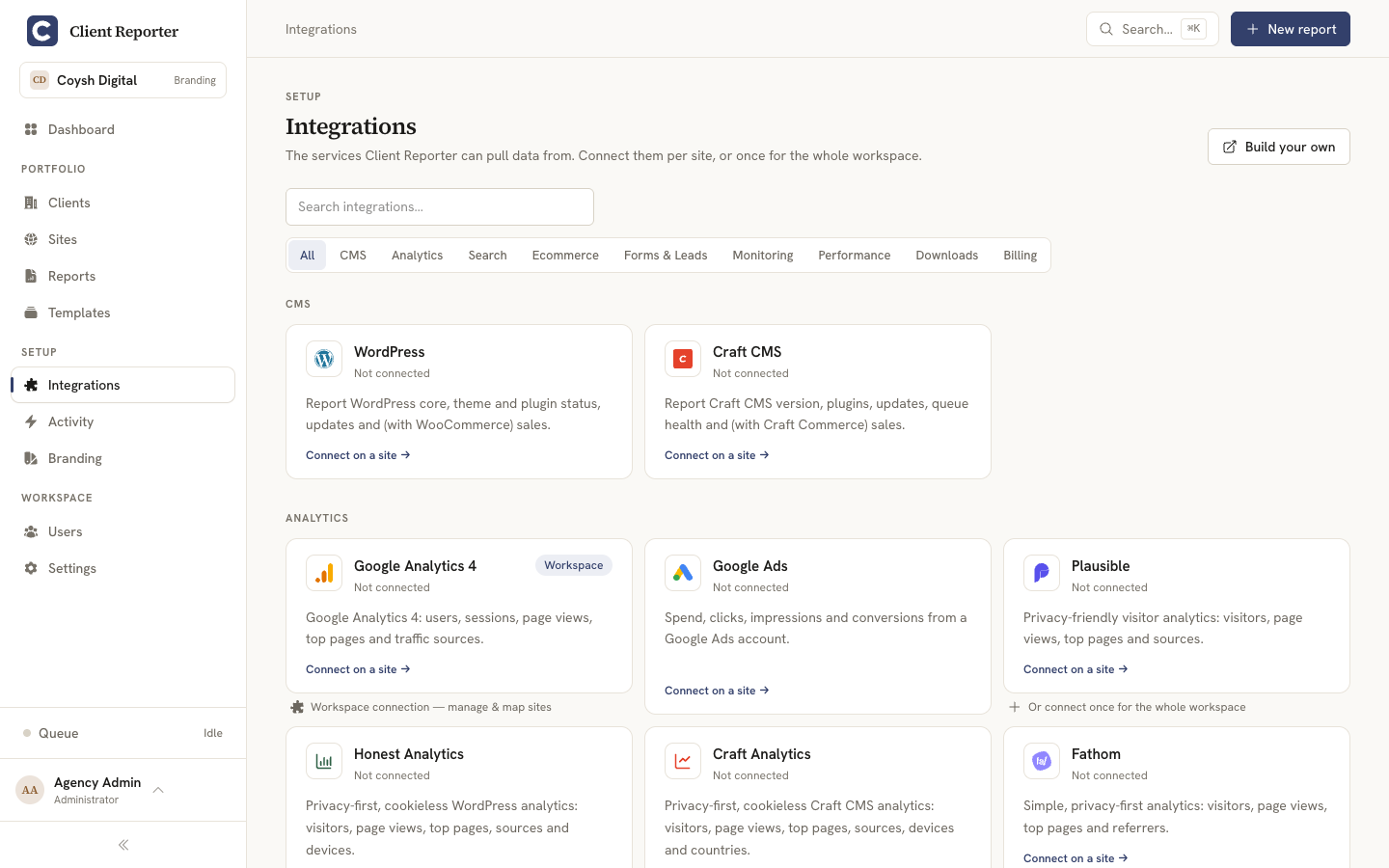
- Open Integrations from the main navigation to see the catalog, grouped by category.
- Pick the integration you want and start its connect flow for the Site.
- The setup screen shows that integration's own connection form plus a numbered "How to connect" guide written for that specific provider. Fill in the fields - an API key or token, and any per-site value such as a property ID or monitor.
- Press Connect & verify. Client Reporter calls the provider's API to make sure the credentials actually work before saving the connection as Connected. If it doesn't verify, you'll see the provider's own error message so you can fix it.
You'll need the manage-integrations permission to do any of this.
Authentication methods
Every integration declares one of three AuthMethod values, and that's what decides what the connect form asks you for:
| Method | How it works | Used by |
|---|---|---|
| API key | You paste an API key or token (plus any provider-specific fields such as a base URL or site ID). Stored encrypted. | Plausible, Fathom, Matomo, Umami, UptimeRobot, Uptime Kuma, Better Uptime, Mailchimp, Shopify, Stripe, WooCommerce, PageSpeed |
| OAuth | You click Connect Google account (or the provider's equivalent) and authorise through a redirect flow; Client Reporter stores the resulting refresh token. | Google Analytics 4, Google Ads, Google Search Console, FreeAgent, Xero |
| Connector token | Client Reporter issues a signed connection code that a companion plugin on the client's site consumes and then verifies. | WordPress, Craft CMS |
Encrypted credential storage
Connection fields marked secret - API keys, tokens, OAuth refresh tokens - live in an encrypted credentials bag on the connection, never in plain settings, and they never get sent back to the browser when you edit a connection. Non-secret values (a property ID, a base URL, a monitor selection) are stored as plain settings. There's more on all this in Security.
Workspace connections ("connect once")
Lots of integrations can be connected once for the whole workspace instead of site by site. One API key or OAuth login then covers every site (or client), and Client Reporter matches up the provider's entities for you.
An integration opts into this by returning true from supportsWorkspaceScope(). When you connect one at the workspace level, the flow has two phases (WorkspaceSetup):
- Credentials - you enter the account-level fields once (or log in via OAuth). Client Reporter checks them by calling the provider's "list" API; any error means the credentials are wrong.
- Mapping - Client Reporter lists everything the account can see (GA4 properties, Plausible sites, UptimeRobot monitors, accounting contacts…) and auto-matches each entity to an existing Site by URL, or - for billing integrations - to a Client by email/name. You confirm or tweak each match, and the per-site connections are all created in one go, sharing the one stored credential.
A site connection created this way only carries its own per-site value (which property, which monitor); the shared API key stays on the workspace connection and is never duplicated. What a workspace entity maps onto is set by workspaceMapsTo() - site for analytics/monitoring (the default), or client for billing/accounting.
Some integrations are workspace-only (onlyWorkspaceScope()), because a per-site connection wouldn't make sense - the accounting integrations (FreeAgent, Xero) bill the agency's clients, so they're matched to Clients rather than Sites and skip the per-site flow altogether. Integrations that are inherently per-site - a single CMS install or a single store - just leave workspace scope off.
Bundled integrations
Client Reporter comes with integrations across eight categories (IntegrationCategory):
| Category | Integrations |
|---|---|
| CMS | WordPress, Craft CMS |
| Analytics | Google Analytics 4, Google Ads, Plausible, Fathom, Matomo, Umami |
| Search | Google Search Console |
| Ecommerce | WooCommerce, Craft Commerce, Shopify, Stripe |
| Forms & Leads | Mailchimp |
| Monitoring | UptimeRobot, Uptime Kuma, Better Uptime |
| Performance | PageSpeed |
| Billing | FreeAgent, Xero |
The definitive list is the integrations array in config/client-reporter.php. A few integrations are provided by another - Craft Commerce rides on the Craft CMS connection rather than needing its own.
Companion plugins and the read-only, HMAC-signed model
The WordPress and Craft CMS integrations connect through companion plugins installed on the client's site. Instead of storing CMS admin passwords, Client Reporter hands the plugin a signed connection token, then pulls data over HMAC-signed requests (sha256): every request is signed, timestamped and nonce-protected, and the plugin rejects anything outside the timestamp tolerance or a replayed nonce.
The connection is strictly read-only - Client Reporter reads things like core/plugin versions and pending updates, but it never runs updates or writes anything back to the client's site. The compatibility matrix in the config lets the app tell you whether a connected plugin is up to date. See:
Per-integration guides
- Analytics - Google Analytics 4, Google Ads, Plausible, Fathom, Matomo and Umami.
- UptimeRobot - uptime monitoring (also covers Uptime Kuma and Better Uptime).
- WordPress and Craft CMS - the CMS companion plugins.
Building your own integration
Third-party integrations don't need to be listed in the core config. They ship as ordinary Composer packages that declare their Integration class via extra.client-reporter.integrations, and Client Reporter finds them automatically at runtime. See Creating an integration for the SDK and a step-by-step walkthrough.